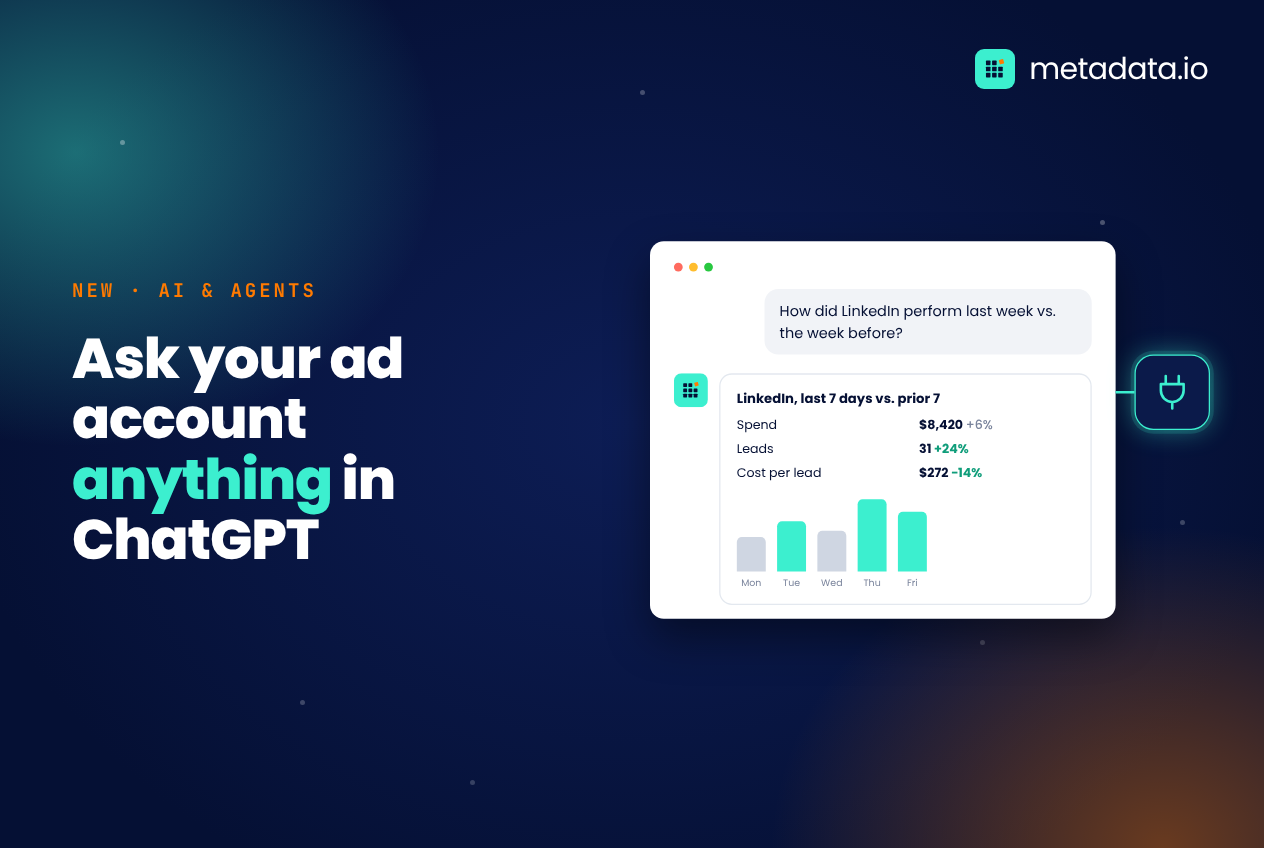
You can now connect your Metadata account to ChatGPT and ask about your B2B campaigns the way you’d ask a colleague. “How did LinkedIn perform last week compared with the week before?” gets an answer from your own account data, in the conversation you already have open.
This article covers what the app does, who it’s for, how to set it up and how it handles changes to your campaigns.
What does the Metadata app in ChatGPT do?
It connects ChatGPT to your Metadata account, so it can read your campaign data and help you work with it (product page). You don’t need to open the platform, build a report or export a spreadsheet to answer a routine question.
You can use it to:
- Review performance: results for a campaign, a channel or a single ad
- Analyze spend: where budget went, by channel, campaign or audience
- Compare periods: this week against last week, or this quarter against last
- Find improvements: which campaigns are underperforming and what to try
- Plan audiences: a draft B2B audience for a new campaign
- Draft creative: ad concepts and images built from your brand kit, previewed before saving
- Prepare campaigns: a campaign draft and a launch-readiness check, left unlaunched until you decide
- Review changes: proposed campaign changes, explained before you decide
Who is it for?
It’s for anyone on a demand gen or marketing team who needs answers from campaign data but doesn’t want to wait for a report. Three people tend to get the most from it.
- Demand gen managers who answer the same performance questions every week.
- Marketing leaders who want a quick read on spend and pipeline before a meeting.
- Marketing ops who prepare reports and want a faster first draft.
How do you set it up?
Setup takes a few minutes.
- Make sure you have a ChatGPT sign-in and a Metadata account. If you’re not sure your account has access, ask your Metadata contact.
- Open the Metadata app in ChatGPT and install it.
- Connect your Metadata account when prompted.
- Ask your first question. A good start: “Summarize my campaign performance for the last 7 days by channel.”
What happens when ChatGPT suggests a change?
You decide. This is the part most teams ask about first.
The app connects through Metadata’s MCP server, which today exposes 171 tools (source). Every tool is labeled by its effect: read, write or destructive, where destructive means it deletes, archives, launches or moves budget (developer docs). Questions about performance and spend use read-only tools.
The app can make changes, such as pausing a campaign, when you ask for them and your account permissions allow it. Ask for a recommendation and it recommends without changing anything. Before approving anything that touches live campaigns or budget, check exactly what will change. The budget limits and approval requirements set in your account still apply.
We recommend starting with reporting and analysis. Once your team trusts the answers, decide which kinds of changes you’re comfortable making from ChatGPT.
How is this different from using the platform?
It’s the same account and the same data. The platform gives you the full view of every campaign, audience and report. ChatGPT is useful when you’re already in a conversation: ask a question, build an audience, draft creative or prepare a campaign without switching tools. Most teams will use both.
Why we built it
Marketers already ask AI assistants about their work. Until now, those assistants could only give generic advice because they couldn’t see your campaigns. Connecting Metadata means the answer to “why did cost per lead go up?” is based on your numbers, not a blog post average.
It also fits how we think about AI at Metadata. Agents should do the repetitive work of pulling numbers and drafting options. People should make the decisions that spend money. Our agentic GTM guide explains that approach in more detail.
Try it
Install Metadata in ChatGPT and ask your first question. Not a Metadata customer yet? Book a demo and we’ll show you the app with your own data.
Book a demoRelated guides: Metadata in ChatGPT: product page | What is an MCP server? | AI marketing workflows | Developer docs