Table of Contents
LinkedIn conversion tracking tells you what happens after someone clicks your ad—whether they requested a demo, downloaded content, or just bounced. This guide walks you through setting up both client-side and server-side tracking, explains why your conversion data is probably incomplete, and shows you what to measure if you actually want to tie ad spend to revenue.
LinkedIn ads conversion tracking is how you measure what actions people take on your website after they click or see your ad. This means you can finally see if your campaigns are actually doing anything beyond just getting clicks.
Think of it as the bridge between your ad spend on LinkedIn and the results on your website. Without it, you’re just throwing money at LinkedIn and hoping for the best. With it, you can see which campaigns, ads, and audiences are driving valuable actions like demo requests, content downloads, or free trial sign-ups.
Here’s what conversion tracking actually tells you:
The difference between running ads with and without conversion tracking is like the difference between knowing you spent money and knowing if that money actually worked.
Setting up conversion tracking involves two main parts. First, you tell LinkedIn what a conversion is inside its Campaign Manager. Then, you add a piece of code to your website so LinkedIn can see when that action happens.
It sounds technical, but it’s mostly a copy-and-paste job. Let’s walk through it.
First, you need to define what you want to track. This is done inside LinkedIn Campaign Manager.
Navigate to the Analyze menu and select Conversion Tracking. From there, click Create conversion. You’ll have to fill out a few fields to define your conversion.
Name your conversion: Be specific. Instead of “Lead,” use “Demo Request – Homepage” or “Ebook Download – ABM Campaign.” This will save you headaches later when you’re looking at reports and trying to figure out which conversion is which.
Define your conversion settings: You’ll choose the key action you want to track, like a page load (for a thank you page) or an event (for a button click). Page loads are easier to set up. Events give you more control but require more technical setup.
Set the conversion value: For B2B, the immediate monetary value is often zero. You can leave this blank unless you’re tracking something with a direct price, like a paid course or product purchase.
Choose your attribution windows: This is how long after seeing or clicking an ad LinkedIn will give credit for a conversion. The defaults are usually fine to start—30 days for clicks and 7 days for views. But if your sales cycle is longer than a month, you might want to extend the click window.
After you create your conversion, LinkedIn will prompt you to set up your Insight Tag. The LinkedIn Insight Tag (sometimes called the LinkedIn pixel) is a small piece of JavaScript code that you place on your website. It’s the thing that actually collects the data and sends it back to LinkedIn.
You have to install this tag on every page of your website, usually in the global footer or header. This allows it to track visitors and fire when someone completes the conversion action you defined in the previous step. If you don’t install the tag, LinkedIn has no way of seeing what happens on your site.
Most people install the Insight Tag through Google Tag Manager instead of adding it directly to their website code. This makes it easier to manage and update without bugging your dev team every time you need to make a change.
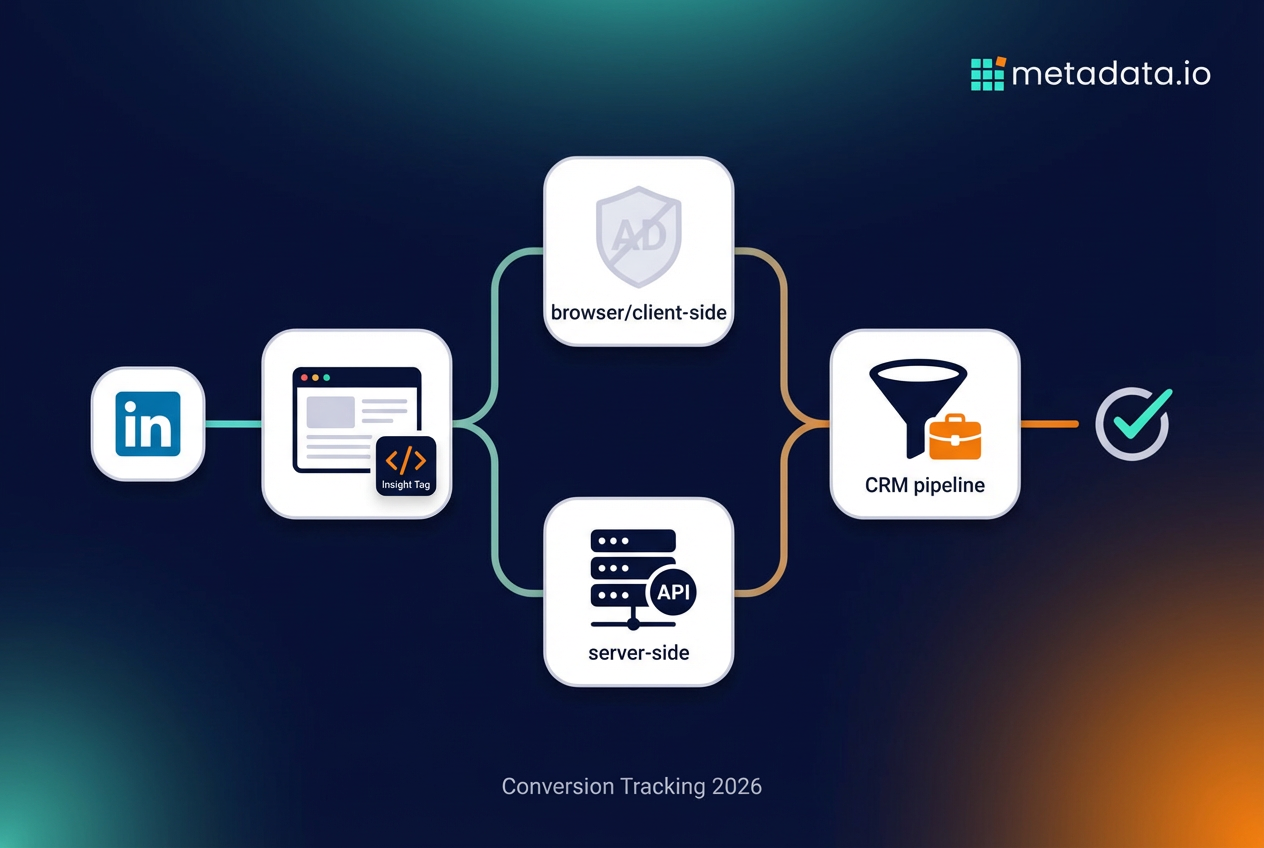
You have two main ways to get conversion data from your website to LinkedIn. You can use the standard, browser-based Insight Tag, or you can set up a more direct, server-to-server connection. They both have their pros and cons.
This is the most common method. You or your developer will add the Insight Tag code directly to your website’s code or, more commonly, through a tag manager like Google Tag Manager. When a user visits your site and completes an action, their browser runs the script and sends the data to LinkedIn.
It’s the easier of the two methods to set up. Most marketers can handle this themselves with a little help from a tag management tutorial. You don’t need a developer on speed dial.
But it’s becoming less and less reliable. Because it runs in the user’s browser, it can be blocked by ad blockers, browser privacy settings (like Apple’s ITP), and cookie consent banners. This means you could be missing a significant chunk of your conversion data—sometimes as much as 30-40% depending on your audience.
The LinkedIn Conversions API is a more direct and reliable way to send data. Instead of relying on the user’s browser, your web server sends conversion information directly to LinkedIn’s server. This is a form of linkedin server side tracking.
Because this connection doesn’t happen in the browser, it’s not affected by ad blockers or most client-side privacy settings. This gives you a much more accurate picture of your campaign performance. You’re capturing conversions that would otherwise be invisible.
The downside is that it’s more technical to set up and often requires developer resources or a specialized conversion tracking tool. You can’t just drop a tag in GTM and call it a day. But if you’re spending serious money on LinkedIn ads, the accuracy is worth the extra effort.
| Tracking Method | How it Works | Pros | Cons |
|---|---|---|---|
| Insight Tag (Client-Side) | JavaScript on your site sends data from the user’s browser. | Easy to set up, especially with GTM. | Blocked by ad blockers and privacy settings, less accurate. |
| Conversions API (Server-Side) | Your server sends data directly to LinkedIn’s server. | Highly accurate and reliable, bypasses browser issues. | More complex to set up, may require developer help. |
You can track almost any meaningful action a user takes on your website. The goal is to track actions that signal someone is moving from a random visitor to a potential customer.
For most B2B companies, this includes a few key types of linkedin website conversions:
The key is to track actions that represent real steps in your buyer’s journey, not just vanity metrics like page views. This data helps you understand what’s working so you can do more of it.
You can set up multiple conversions to track different stages of your funnel. For example, you might track both ebook downloads (top of funnel) and demo requests (bottom of funnel) as separate conversions. This lets you see which campaigns are good at generating awareness versus which ones are good at driving sales conversations.
Here’s the hard truth your 10th-grade English teacher wouldn’t tell you. Even with conversion tracking set up perfectly, the data you see in LinkedIn Campaign Manager is incomplete. And sometimes, it’s just plain wrong.
Relying solely on native LinkedIn ad reporting is like trying to drive while looking through a keyhole. You see a tiny piece of the picture, but you’re missing all the context around you.
As mentioned earlier, the Insight Tag is easily blocked. A huge percentage of web users—especially in tech—use ad blockers. On top of that, browsers like Safari and Firefox have built-in tracking prevention that can stop the tag from firing.
This means a qualified lead from your top target account could click an ad, request a demo, and you’d never know it came from LinkedIn. The conversion happens, but it doesn’t get reported. Your conversion rate linkedin looks terrible, but it’s not reality.
The problem gets worse every year as privacy regulations tighten and browsers get more aggressive about blocking tracking. What you see in your LinkedIn dashboard is increasingly just a fraction of what’s actually happening.
B2B sales are not impulse buys. A prospect might download an ebook today, attend a webinar in two months, and finally talk to sales in six months. LinkedIn’s attribution window will have closed long before that deal ever happens.
The Insight Tag only sees the initial online action. It has zero visibility into what happens next in your CRM. It doesn’t know if that “lead” became a meeting, an opportunity, or a closed-won deal.
So you’re making budget decisions based on which campaigns generated the most form fills, not which campaigns generated the most revenue. And those are very different things.
This is the biggest problem for B2B marketers. To LinkedIn, a demo request from a Fortune 500 CIO is the same as an ebook download from an unpaid intern. They both count as one “conversion.”
The platform will then try to get you more “conversions” just like that one, even if one is infinitely more valuable than the other. It pushes you to get more cheap leads, not better leads. This is how you end up with a lot of form fills but no pipeline to show for it.
LinkedIn’s algorithm doesn’t care about lead quality. It cares about conversion volume. So it will optimize your campaigns to get you more of whatever converts most easily, which is usually low-intent actions from unqualified prospects.
So if LinkedIn’s data is flawed, what do you do? You stop relying on it as your source of truth. You need a way to connect your ad spend to what’s actually happening in your CRM.
Imagine if your ad platform knew when a “lead” from a LinkedIn campaign became a sales-qualified opportunity in Salesforce. Imagine it could see which ads were bringing in leads that turned into real pipeline, and which were just generating noise. Then, imagine it could automatically shift your budget toward the campaigns that are actually making you money.
This isn’t a fantasy. It’s what happens when you stop looking at surface-level metrics like “leads” and start measuring against pipeline and revenue. You need a system that ties everything together—the ad click, the website form fill, the CRM record, the sales opportunity, and the final deal.
When your ad platform has this full-funnel view, it can make decisions based on revenue, not just front-end conversions. That’s how you stop wasting money on campaigns that look good on a LinkedIn dashboard but do nothing for your bottom line.
Here’s what changes when you connect ads to revenue:
The truth is, most B2B marketers are flying blind. They’re making million-dollar budget decisions based on incomplete data from LinkedIn’s native tracking. And then they wonder why their campaigns generate tons of “leads” but sales keeps complaining about quality.
If you’re tired of guessing and want to see how to connect every ad dollar to actual pipeline, it might be time for a different approach. Ready to see what marketing looks like when it’s tied to revenue? Book a demo.
Frequently Asked Questions (FAQ)
How long does it take for LinkedIn conversion tracking to start working?
Can I track conversions without installing code on my website?
What happens if I change my attribution window after campaigns are running?
Do I need separate conversion tracking for each campaign?
Why am I seeing conversions in Google Analytics but not in LinkedIn?
Can I track phone calls as conversions in LinkedIn?
How do I know if my Insight Tag is working properly?
Should I track multiple conversions or just one main conversion?