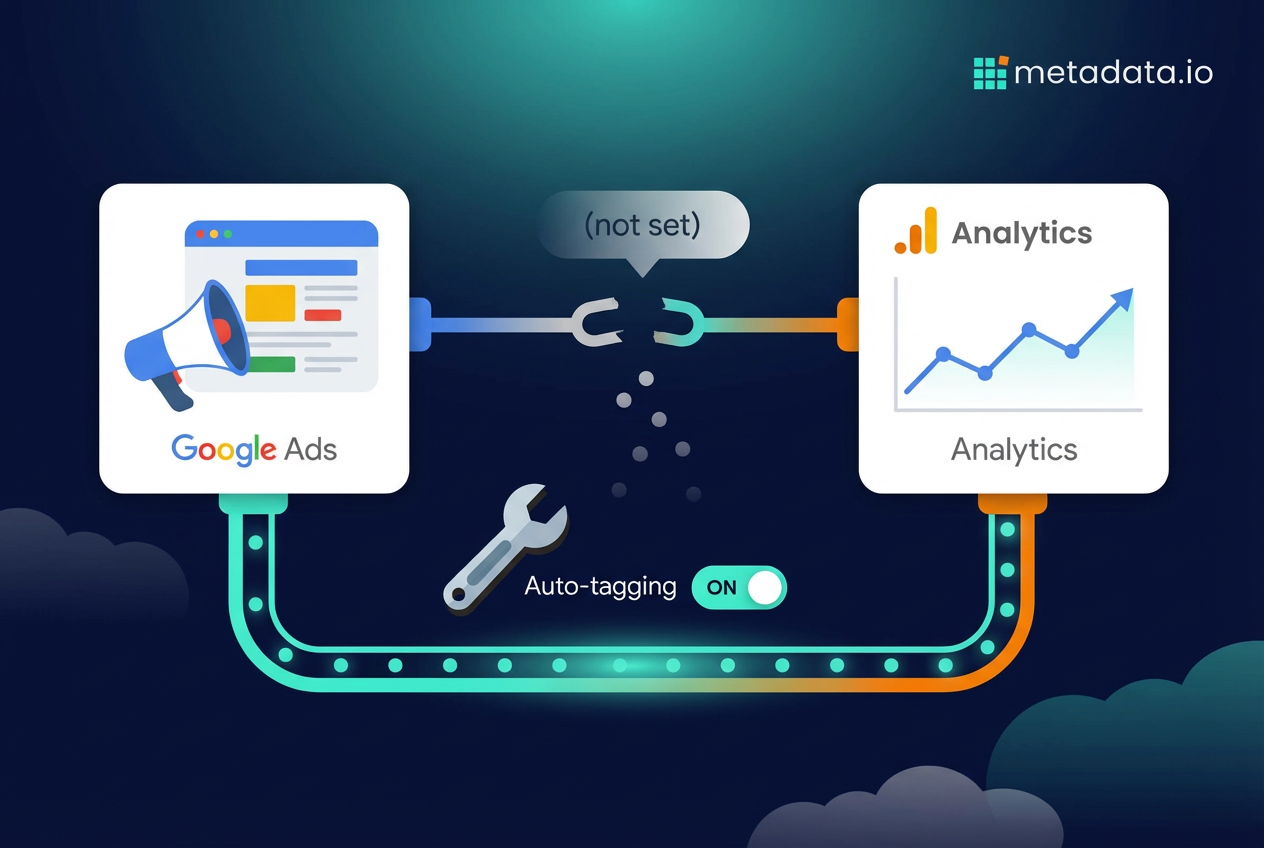
Your Google Ads data isn’t showing up in Analytics because your accounts aren’t linked properly, auto-tagging is off, or something on your site is breaking the connection. This guide walks you through exactly why it happens and how to fix it, plus why even when it’s "fixed," the numbers still won’t match perfectly.
Why your Google Ads data isn’t showing up in Google Analytics
If your Google Ads data isn’t showing up in Google Analytics, it’s almost always because your accounts aren’t linked or auto-tagging is turned off. These two settings are the handshake between the platforms, and without them, they can’t share data about your campaigns, clicks, and cost.
It’s a classic marketing headache. You’re spending money on ads, but your analytics dashboard is a ghost town. Instead of seeing your campaign names, you’re staring at (not set) or (direct). You can’t tell what’s working, what’s not, or where your money is actually going.
The good news? Fixing this is usually pretty straightforward once you know where to look.
1. Your Google Ads and Analytics accounts aren’t linked
This is the most common reason for missing data. If you don’t explicitly tell Google Ads and Google Analytics to talk to each other, they won’t.
Linking the two is what allows cost data, impression data, and campaign details from Ads to appear in your Analytics reports. Without this link, Analytics sees traffic from your ads as just another click from google.com. It often lumps everything into ‘Organic Search’ or ‘Referral’ traffic, and you lose all the rich context about which campaign, ad group, or keyword drove the visit.
2. Auto-tagging is turned off
Auto-tagging is a feature in Google Ads that automatically adds a unique parameter to the end of your destination URLs. This parameter is called the Google Click ID, or GCLID for short.
When someone clicks your ad, this GCLID gets passed to your landing page. The Google Analytics tag on your site reads it, and that’s how Analytics knows a specific session came from a specific ad click. If auto-tagging is off, the GCLID is never added, and the connection is broken.
Analytics can’t match the session to the ad click, so the data never shows up in your Google Ads reports within GA4. Even if you use manual UTM tags, you won’t get the full, detailed data that auto-tagging provides—like cost and specific keyword info.
3. You have redirect or URL rewrite issues
Sometimes the problem isn’t in Google’s settings. It’s on your own website.
If your landing page URL has a redirect, it can strip the GCLID parameter from the URL before the page fully loads. For example, a redirect from HTTP to HTTPS or from a non-www to a www version of your domain can cause this. The user clicks the ad, the GCLID is attached, but the redirect sends them to a new URL without it.
The Google Analytics tag on the final page never sees the GCLID, so it can’t attribute the session back to your ad. The click is essentially lost in translation.
4. There’s a data processing lag
Sometimes, the answer is just to wait. It can take 24 to 48 hours for data from Google Ads to be fully processed and displayed in your Google Analytics reports.
If you just launched a new campaign or linked your accounts, you might not see data immediately. This is especially true for cost data. So before you start tearing apart your settings, grab a coffee and check back the next day.
Patience is not a fun answer, but it’s often the right one.
5. Your campaign data is filtered out in Analytics
Google Analytics allows you to create filters to clean up your data. A common use is to exclude traffic from internal IP addresses so your own employees don’t inflate your website metrics.
However, if these filters are set up incorrectly, they can accidentally block legitimate traffic from your ads. For example, a poorly configured filter could be excluding all traffic from a certain region where your ads are running. It’s worth checking your data filters in the GA4 Admin panel to make sure you’re not accidentally telling Analytics to ignore the very data you’re looking for.
6. You’re looking at the wrong date range or report
This one sounds simple, but it happens to everyone. You might be looking at a report from yesterday when your campaign only started today.
Or you might be in the wrong report altogether, looking at ‘Organic Search’ traffic when you should be in the ‘Paid Search’ section. In GA4, the primary report for this is under ‘Acquisition’ then ‘Traffic acquisition’. Make sure you’ve selected the right date range and are filtering for the ‘Paid Search’ channel group to see your Google Ads performance.
How to fix missing Google Ads data in Google Analytics
Alright, enough diagnosing the problem. Let’s fix it.
Running through this checklist will solve the issue 99% of the time and get your data flowing from Google Ads into Google Analytics correctly. Each step builds on the last, so don’t skip ahead.
Step 1: Check the Google Ads and Google Analytics link status
First things first, confirm the accounts are actually linked. This is the foundation for all data sharing.
In your Google Analytics 4 property, go to the Admin section (the gear icon in the bottom-left). Under the ‘Property’ column, click on Google Ads Links. You should see your Google Ads account listed here with a "Linked" status.
If you don’t see your account, or it says "Not linked," you’ve found your problem. Click the blue "Link" button, select the Google Ads account you want to connect, and follow the configuration steps. Make sure you have admin access to both accounts to do this.
Step 2: Turn on auto-tagging in Google Ads
Next, ensure auto-tagging is enabled. This is non-negotiable for proper tracking.
In your Google Ads account, navigate to Settings in the left-hand menu, then Account settings. Look for the Auto-tagging section. Make sure the box next to "Tag the URL that people click through from my ad" is checked.
If it’s unchecked, check it and hit save. Data will only be tracked correctly for clicks that happen after you enable this setting. It won’t retroactively fix your historical data, so don’t expect last week’s numbers to magically appear.
Step 3: Audit your landing page URLs for redirects
Now, let’s check for any URL shenanigans that might be stripping your tracking parameters. The easiest way to do this is to test it yourself.
Go into your Google Ads account and find an active ad. Copy the final URL. Manually add a test GCLID parameter to the end, like this: www.yourwebsite.com/?gclid=test. Paste this full URL into your browser and hit enter.
Once the page loads, look at the URL in the address bar. Does it still contain ?gclid=test? If the GCLID parameter has vanished, you have a redirect or URL rewrite problem that your web developer will need to fix. This is usually a quick fix on their end, but it’s critical for tracking.
Step 4: Verify your Google Analytics filters
Time to play detective and make sure you’re not filtering out your own ad traffic. In your GA4 Admin panel, go to Data Settings, then Data Filters.
You’ll see a list of any active filters, which are typically used to exclude internal or developer traffic. Click on each filter and review its configuration. Make sure the rules aren’t so broad that they could be blocking real users who clicked on your ads.
If you find a problematic filter, you can either adjust its settings to be more specific or temporarily deactivate it to see if your Google Ads data starts appearing. Just remember to turn it back on once you’ve confirmed the fix.
Step 5: Double check your reports and date ranges
Finally, let’s make sure you’re looking in the right place. It’s easy to get lost in the GA4 interface, especially if you’re used to Universal Analytics.
In GA4, go to Reports, then Acquisition, then Traffic acquisition. At the top of the report, check the date range. Make sure it covers the period when your ads were running. In the table, the default dimension is ‘Session default channel group’. Look for the Paid Search row. This is where your Google Ads traffic should appear.
If you see data in ‘Paid Search’, you can click on it to drill down further and see performance by campaign, ad group, and keyword. If you still don’t see anything, go back through the previous steps and double-check each one.
Why Google Ads and Google Analytics numbers never match perfectly
Even when everything is connected correctly, you’ve probably noticed some discrepancies in your Google Analytics property. The clicks reported in Google Ads will almost never equal the sessions reported in Google Analytics.
This isn’t a sign that something is broken. It’s just a result of the two platforms measuring things differently. Understanding these differences is key to trusting your data and explaining to your boss why the numbers aren’t identical.
Different attribution models
The biggest difference comes down to what each platform considers a successful interaction.
- Google Ads tracks clicks: A "click" is recorded the instant someone clicks on your ad, before they even land on your website.
- Google Analytics tracks sessions: A "session" only starts if the user’s browser successfully loads your page and the Analytics tracking code fires.
If someone clicks your ad but closes the tab before your page loads, Ads records a click, but Analytics records nothing. This is a very common reason for discrepancies, especially if your landing pages are slow to load.
Clicks vs sessions explained
Think of it like this: a click is someone knocking on your store’s front door. A session is that person actually walking inside and looking around.
A user might click your ad twice in a few minutes out of habit or because they’re impatient. Google Ads will report two clicks, but Google Analytics will see it as one session if those clicks happen within 30 minutes of each other. That’s just how session tracking works.
Here’s a quick comparison:
| Google Ads (Clicks) | Google Analytics (Sessions) |
|---|---|
| Records the click immediately | Records a session only after the page loads |
| Counts multiple clicks from one person | One person can have multiple clicks but only one session in 30 minutes |
| Filters out invalid clicks automatically | May initially record invalid traffic as a session |
| Measures intent to visit | Measures an actual visit |
How invalid clicks are handled
Google is pretty good at identifying and filtering out invalid clicks within the Google Ads platform. This includes things like accidental double-clicks, clicks from known bots, or other fraudulent activity.
You aren’t charged for these clicks, and they are removed from your reports. Google Analytics, on the other hand, might still record some of these as sessions before its own bot filtering kicks in. This can lead to Analytics showing more sessions than Ads shows billable clicks.
Time zone differences
This is a simple but often overlooked cause of data mismatch. Your Google Ads account and your Google Analytics property might be set to different time zones.
If your Ads account is set to Pacific Time and your Analytics is set to Eastern Time, your "daily" data will never align perfectly. A click at 10 PM PT on Monday will be recorded in Ads for Monday, but in Analytics, it will be recorded as a session at 1 AM ET on Tuesday. Check both time zone settings and make sure they match.
The problem with relying on disconnected ad and analytics platforms
Fixing these connection issues is a pain. And honestly, it’s a symptom of a much bigger problem for B2B marketers.
You’re spending your valuable time acting as a systems integrator instead of a strategist. Your day is consumed by troubleshooting tracking codes, checking settings, and trying to make sense of it all. You’re stuck in a manual loop.
You download CSVs from Google Ads, then more from LinkedIn Ads, then you try to cross-reference them with data from your CRM like Salesforce. You’re trying to stitch together a complete picture of performance, but you’re always looking in the rearview mirror at last week’s or last month’s data. By the time you’ve figured out what happened, the moment to act has already passed.
This is where you miss the real story. While you’re wrestling with clicks and sessions, you can’t easily see which campaigns are actually generating qualified pipeline. You can’t connect your ad spend directly to the only metric that really matters to the business: revenue.
You’re optimizing for clicks and conversions, but your CEO wants to know about deals closed and revenue generated. There’s a massive gap between what you can measure and what you need to prove. And that gap is filled with spreadsheets, guesswork, and late nights trying to make the numbers make sense.
Stop wasting time connecting dots and start generating revenue
Imagine if you didn’t have to worry about any of this. No more checking auto-tagging settings. No more late-night Googling of "adwords data not showing in analytics". No more explaining to your boss why the numbers don’t match.
Just one single source of truth to see exactly how your ad spend is turning into pipeline and revenue. That’s the whole point of a platform built specifically for B2B advertising. It handles the tedious connections and technical nonsense for you.
It automatically runs experiments across channels, finds the audiences most likely to buy, and tells you what’s actually moving the needle in terms of business results, not just vanity metrics. Your job isn’t to be a Google Analytics detective. It’s to build a strategy that drives growth for your company.
When you automate the manual, low-value work, you get to focus on what you’re good at. You get to think about messaging, positioning, and how to reach your ideal customer profile. You might even start to enjoy marketing again.
If you’re tired of wrestling with disconnected tools and want to see how an automated approach can connect your ad spend directly to revenue, maybe it’s time for a chat. You can book a demo and see for yourself how much easier it can be when the platforms actually talk to each other—and more importantly, when they talk about the metrics that actually matter.
Because at the end of the day, nobody cares about clicks. They care about customers. And if your current setup can’t show you the path from one to the other, it might be time to try something different.
Benchmark context: across 153 B2B advertisers and $57.6M of 2025 ad spend, Metadata's 2026 B2B Paid Media Benchmark reports what a LinkedIn lead actually cost, and how that varied by ad format, audience and offer type.